---
title: API Keys
description: Learn how to create, use, edit, rotate, disable, filter, and delete Reloop API keys from the dashboard or API.
icon: key-new
faq:
- question: Is an API key secret shown again after creation?
answer: No. Reloop displays the full secret key only once when created or rotated. After closing the modal, only the prefix is visible in the dashboard or API lists because Reloop stores a secure hash.
- question: How do I edit or rename an API key?
answer: Click the row menu (···) next to any API key in the dashboard and select Edit to change its label, or use the Update API Key endpoint in code. Renaming does not affect the secret or key functionality.
- question: What happens when I rotate an API key?
answer: Rotating invalidates the old secret string immediately and issues a new secret string for the same key ID. You must copy the new secret right away and update your applications.
- question: What is the difference between disabling and deleting an API key?
answer: Disabling pauses access temporarily — requests using the key will fail with 401 Unauthorized, but you can re-enable it later. Deleting permanently revokes the key and cannot be undone.
- question: Can I use the same API key for both REST API and SMTP relay?
answer: Yes. Reloop API keys work for both REST API requests (as x-api-key header) and SMTP authentication (using the key as password).
- question: What should I do if an API key leaks?
answer: Disable or delete the key immediately from the dashboard or API. Create a replacement key, update your application secrets, and delete the compromised key.
---
> For the complete documentation index, see [llms-docs.txt](/llms-docs.txt) or the site index [llms.txt](/llms.txt). Full docs corpus: [llms-full-docs.txt](/llms-full-docs.txt). Prefer markdown URLs (append `.md`) for agent consumption. Product skill: [skill.md](/skill.md).
## View all API Keys
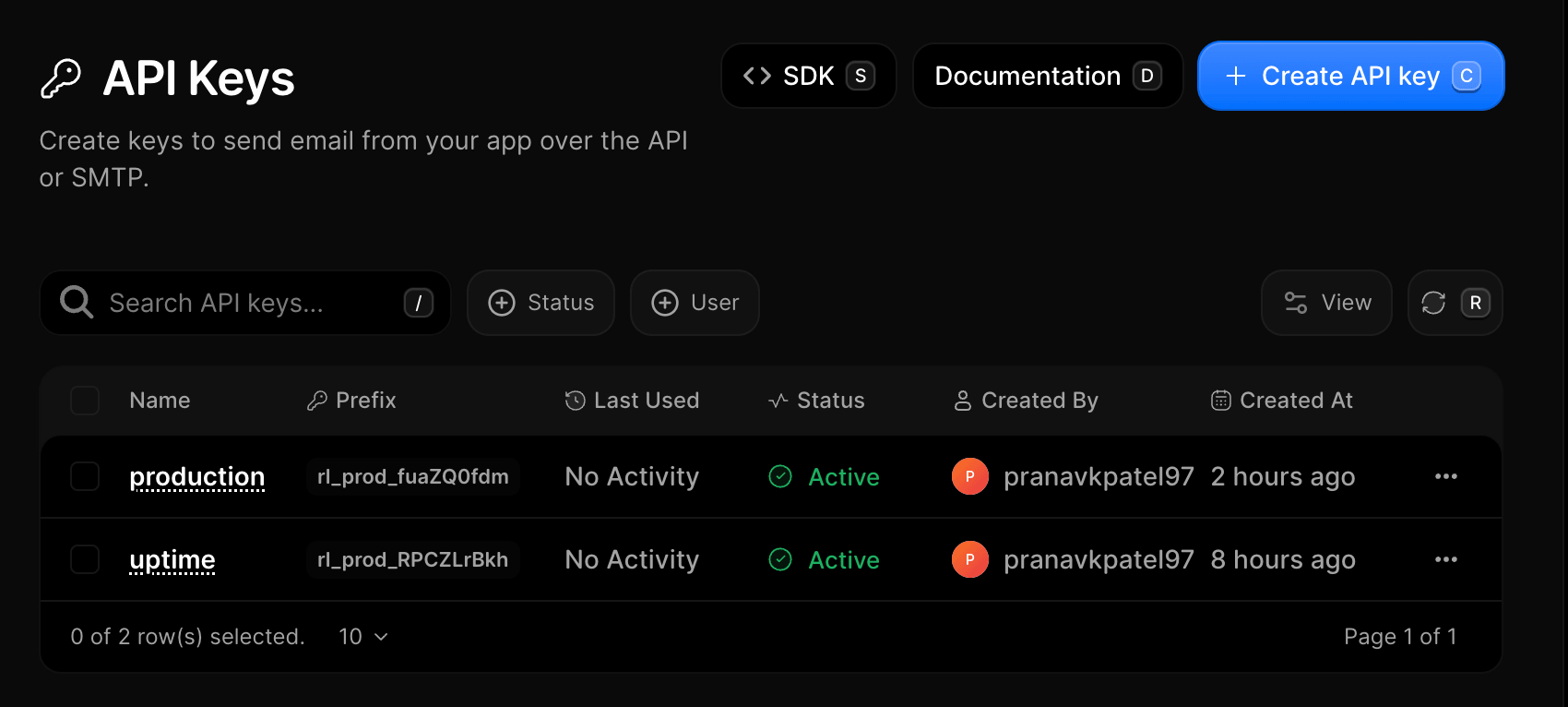
The [API Keys Dashboard](https://reloop.sh/dashboard/api-keys) shows you all the API Keys you have created along with their details, including the last time you used an API Key.
## Create an API key
1. Go to [API Keys](https://reloop.sh/dashboard/api-keys)
2. Click **Create API key** (or press `C`)
3. Enter a descriptive name (e.g., `Production Server` or `Staging Worker`)
4. Click **Create API Key**
5. Copy the secret key, then click **Cancel**
Copy the secret key immediately upon creation. Reloop stores a secure hash, so the full secret can never be retrieved again after closing the dialog.
## Edit an API key
Currently, only the **name** of an API key can be edited. The API key secret itself cannot be changed. If you need a new secret, [rotate the key](#rotate-an-api-key) instead.
1. Go to [API Keys](https://reloop.sh/dashboard/api-keys)
2. Click the row menu (**···**) next to the key you want to rename
3. Select **Edit Api Key**
4. Update the key name and click **Save changes** (or press `Enter`)
## Rotate an API key
Rotate a key when you suspect it may have been exposed, when a team member with access leaves, or as part of regular security hygiene. Rotating issues a new secret and immediately revokes the old one. All previous request logs and usage history stay intact.
1. Open [API Keys](https://reloop.sh/dashboard/api-keys)
2. Click the row menu (**···**) → **Rotate Key**
3. Enter the key name to confirm rotation
4. Click **Rotate Key** (or press `Enter`)
Copy the new secret key immediately upon rotation. Reloop stores a secure hash, so the full secret can never be retrieved again after closing the dialog.
## Disable or enable an API key
Disable a key to temporarily block access without deleting it. You can re-enable it at any time. Common reasons:
- **Security breach** — key was exposed in a public repo or logs.
- **System maintenance** — block requests during upgrades to prevent data corruption.
- **Testing transitions** — verify your system works with a new key before removing the old one.
- **Cost control** — stop billable consumption from a runaway app or loop.
- **Suspicious activity** — pause access while you investigate unusual request patterns.
1. Open [API Keys](https://reloop.sh/dashboard/api-keys)
2. Click the row menu (**···**) → **Disable** (or **Enable** if already paused)
3. The key status updates instantly to **Disabled**
## Delete an API key
If an API Key hasn't been used in the last 30 days, consider deleting it to keep your account secure.
1. Open [API Keys](https://reloop.sh/dashboard/api-keys)
2. Click the row menu (**···**) → **Delete API Key**
3. Enter the key name to confirm permanent removal
4. Click **Delete API Key** (or press `Enter`)
## View all API Keys
Fetch a paginated list of API keys in your organization.
## Create an API key
Use an existing API key to programmatically create new keys for services or team members.
Copy the secret key immediately upon creation. Reloop stores a secure hash, so the full secret can never be retrieved again.
## Edit an API key
## Rotate an API key
## Disable or enable an API key
## Delete an API key
## FAQ
No. Reloop displays the full secret key string only once when created or rotated. After closing the modal, only the prefix (e.g. `rl_prod_17aQUCC-e`) is visible. Reloop stores a secure hash, so if a secret is lost, you must rotate the key or create a new one.
**Disabling** pauses access temporarily — requests using the key fail with `401 Unauthorized`, but you can re-enable it later. **Deleting** permanently removes the key record and cannot be undone.
Yes. Reloop API keys work across both REST API endpoints (as the `x-api-key` header) and SMTP authentication (using the API key prefix/secret as SMTP credentials).
Reloop does not enforce a hard limit on total API keys per organization. However, we recommend maintaining clean key hygiene by deleting stale or unused keys.
## Related
Official Reloop SDK libraries for TypeScript, Python, Go, and more.
Use API keys for SMTP email sending.
API rate limits and request quotas per organization.
## API reference
Generate new API key and secret.
Paginated list of organization keys.
Rename existing API key.
Issue new secret, revoke old.
Pause access temporarily.
Restore paused access.
Permanently delete key.