---
title: Contact Channels
sidebarTitle: Channels
description: Learn how to create, edit, and delete Reloop subscription channels, enroll contacts, and view subscribers from the dashboard or API.
icon: notification-indicator
faq:
- question: What are contact channels in Reloop?
answer: Channels are subscription topics such as Product Updates or Newsletter. Contacts opt in or out per channel instead of a single global unsubscribe.
- question: What is the difference between opt-in and opt-out channels?
answer: Opt-in enrolls new contacts in the channel automatically. Opt-out means contacts must be enrolled manually or choose to join themselves.
- question: What is the difference between public and private channels?
answer: Public channels appear on the preference center so subscribers can manage them. Private channels are only visible in the Reloop dashboard.
- question: Does opting out of a channel unsubscribe the contact globally?
answer: No. Channel opt-out only affects that topic. The contact can remain subscribed overall and stay enrolled in other channels.
- question: What happens when I delete a channel?
answer: Deleting a channel removes the channel and its enrollment records. Contact profiles themselves remain.
- question: How do I see who is enrolled in a channel?
answer: From the Channels page, open the row menu (···) and select View Subscribers to open Contacts filtered to that channel’s enrolled contacts.
---
> For the complete documentation index, see [llms-docs.txt](/llms-docs.txt) or the site index [llms.txt](/llms.txt). Full docs corpus: [llms-full-docs.txt](/llms-full-docs.txt). Prefer markdown URLs (append `.md`) for agent consumption. Product skill: [skill.md](/skill.md).
## View all channels
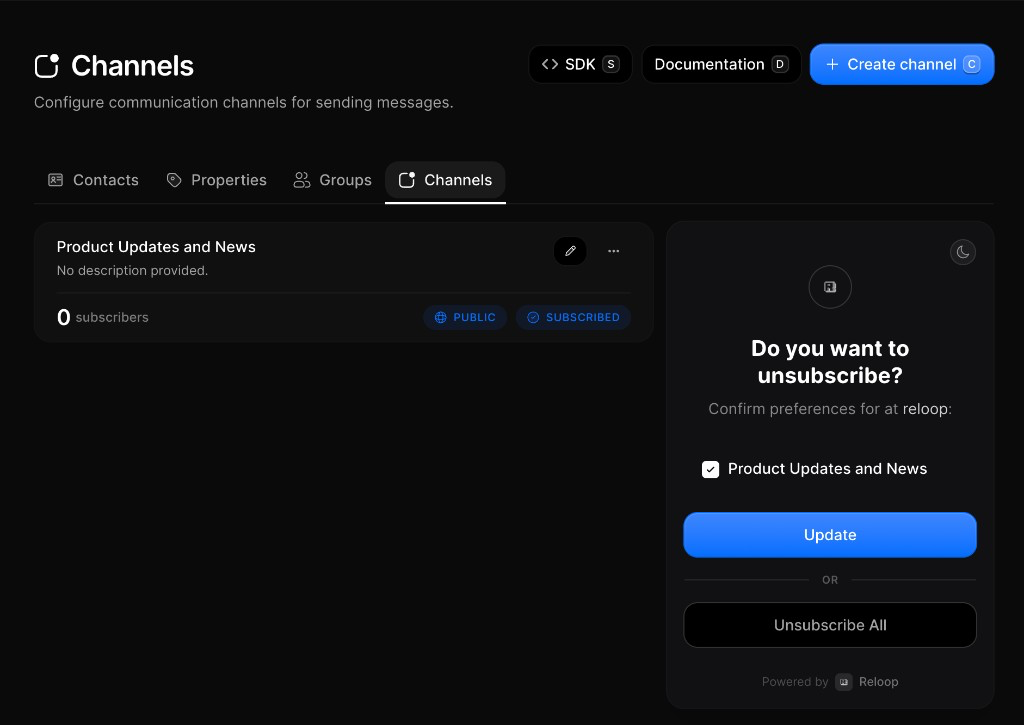
The [Channels Dashboard](https://reloop.sh/dashboard/contacts/channels) shows every subscription channel in your organization, including subscriber count, visibility, and default enrollment.
Channels are topics contacts can opt in or out of — for example **Product Updates** or **Newsletter** — instead of a single global unsubscribe. Visibility and default subscription stay on the channel; enrollments live on each [contact](/docs/learn/contacts).
## Create a channel
1. Go to [Contacts → Channels](https://reloop.sh/dashboard/contacts/channels)
2. Click **Create channel** (or press `C`)
3. Enter a descriptive name (e.g. `Product Updates` or `Newsletter`)
4. Optionally add a description, set **Default Subscription**, and choose **Public Channel**
5. Click **Create Channel** (or press `Enter`)
**Default Subscription** controls whether new contacts are enrolled automatically (**opt-in**) or must be enrolled manually (**opt-out**). **Public** channels appear on the preference center; **private** channels stay hidden from subscribers.
## Edit a channel
You can update a channel’s name, description, default subscription, and public/private visibility. Editing does not remove existing enrollments.
1. Go to [Contacts → Channels](https://reloop.sh/dashboard/contacts/channels)
2. Click the edit icon (or row menu **···** → **Edit Channel**)
3. Update the fields you need
4. Click **Update Channel** (or press `Enter`)
## View channel subscribers
**View Subscribers** opens Contacts filtered to contacts enrolled in that channel. The subscriber count on the channel card matches this enrolled list — not every contact in your organization.
1. Open [Contacts → Channels](https://reloop.sh/dashboard/contacts/channels)
2. Click the row menu (**···**) → **View Subscribers**
3. Review the filtered contacts list (clear the channel filter chip to see everyone again)
## Remove a contact from a channel
Removing a contact from a channel only updates that topic preference. The contact stays in your organization and can remain enrolled in other channels.
1. Open [Contacts](https://reloop.sh/dashboard/contacts) (or open a contact detail)
2. Edit the contact and remove the channel (e.g. **Product Updates**)
3. Save the contact
## Delete a channel
Deleting removes the channel and its enrollment records. Contact profiles themselves remain in your organization.
1. Open [Contacts → Channels](https://reloop.sh/dashboard/contacts/channels)
2. Click the row menu (**···**) → **Delete Channel**
3. Confirm permanent removal
## View all channels
Fetch a paginated list of channels in your organization, or get a single channel by ID.
## Create a channel
Create a subscription channel with optional description, default subscription, and visibility.
## Edit a channel
## Enroll a contact in a channel
## Remove a contact from a channel
## Delete a channel
## FAQ
Subscription topics such as Product Updates or Newsletter. Contacts opt in or out per channel instead of a single global unsubscribe.
**Opt-in** enrolls new contacts automatically. **Opt-out** means contacts must be enrolled manually or choose to join themselves.
**Public** channels appear on the preference center so subscribers can manage them. **Private** channels are only visible in the Reloop dashboard.
No. Channel opt-out only affects that topic. The contact can remain subscribed overall and stay enrolled in other [channels](/docs/learn/contacts/channels).
Deleting removes the channel and its enrollment records. [Contact](/docs/learn/contacts) profiles themselves remain.
From the Channels page, open the row menu (**···**) and select **View Subscribers** to open Contacts filtered to that channel’s enrolled contacts.
## Related
Add, search, and manage people in your organization.
Lists you send to without changing subscription status.
Custom traits on each contact record.
## API reference
New channel.
All channels.
Channel details.
Change settings.
Add a contact to a channel.
Change channel enrollment.
Remove channel.