---
title: Contact Groups
sidebarTitle: Groups
description: Learn how to create, rename, and delete Reloop contact groups, and add or remove members from the dashboard or API.
icon: modules
faq:
- question: What are contact groups in Reloop?
answer: Groups are lists you send to — for example VIP Customers or Free Trial. One contact can belong to many groups; the person stays a single contact record.
- question: Does putting a contact in a group change their subscription status?
answer: No. Groups organize contacts for targeting. Subscription status and channel preferences stay on the contact record itself.
- question: Can I add contacts to a group in bulk?
answer: Yes. Open the group in the dashboard and use Add Contacts to Group, or call the Groups API to add a member by contact ID or email.
- question: What happens when I remove a contact from a group?
answer: The contact leaves that group only. Their profile, status, properties, and other group memberships are unchanged.
- question: Can I rename a group?
answer: Yes. Update changes the group name only — from the group detail header in the dashboard or via the Groups update API.
- question: Does deleting a group delete its contacts?
answer: No. Deleting soft-deletes the group. Contacts stay in your organization; they are no longer targeted via that group.
- question: Can I import group members via CSV?
answer: No. Reloop does not offer CSV import for group members today. Add members in the dashboard or via the API. Export CSV from a group detail includes email, status, and created-at only.
- question: Is there a limit on how many groups or members I can have?
answer: Reloop does not enforce a fixed maximum number of groups or members per organization. Create, add, and remove are rate-limited (30 requests per 60 seconds per organization). List endpoints paginate with a max page size of 100. See Usage Limits in the API docs.
---
> For the complete documentation index, see [llms-docs.txt](/llms-docs.txt) or the site index [llms.txt](/llms.txt). Full docs corpus: [llms-full-docs.txt](/llms-full-docs.txt). Prefer markdown URLs (append `.md`) for agent consumption. Product skill: [skill.md](/skill.md).
## View all contact groups
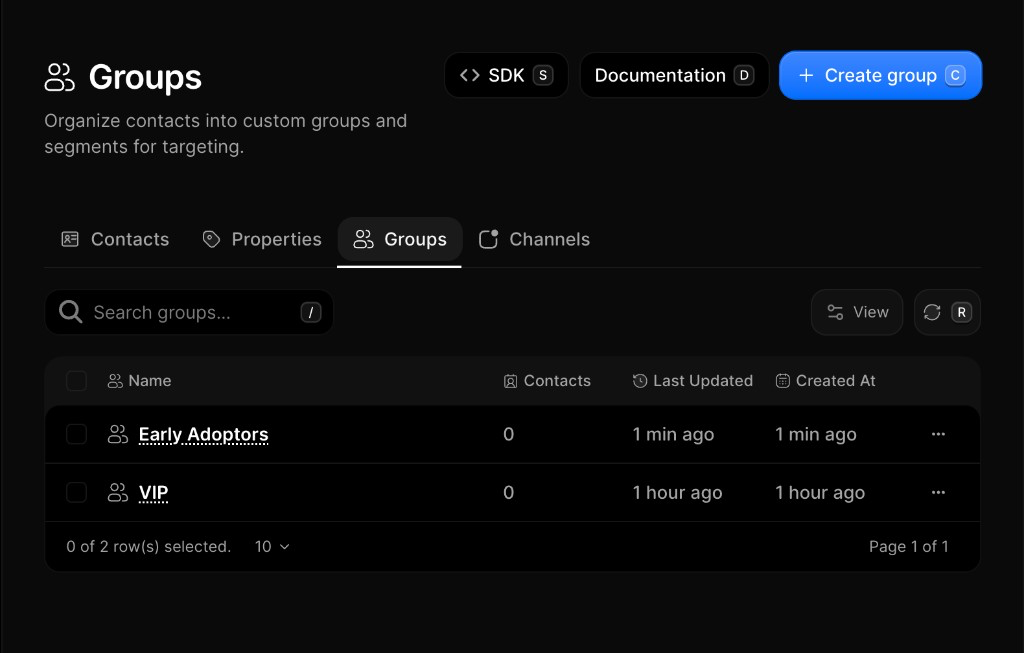
The [Groups Dashboard](https://reloop.sh/dashboard/contacts/groups) shows every group in your organization. Open a group to see its members, rename it, or add and remove contacts.
Groups are lists you send to. One [contact](/docs/learn/contacts) can sit in many groups; the person stays a single record. Membership does not change subscription status — that stays on the contact.
## Create a group
1. Go to [Contacts → Groups](https://reloop.sh/dashboard/contacts/groups)
2. Click **Create Group**
3. Enter a descriptive name (e.g. `VIP Customers` or `Free Trial`)
4. Click **Create Group** (or press `Enter`)
## Rename a group
Currently, only the **name** of a group can be edited. Renaming does not change members or how the group is targeted.
1. Go to [Contacts → Groups](https://reloop.sh/dashboard/contacts/groups)
2. Click a group to open its detail page
3. Edit the name in the header
4. Click **Save** (or press `Enter`)
## Add contacts to a group
Use groups to target campaigns without changing who someone is. For example, put trial users in **Free Trial** and paying customers in **VIP**, then send an upgrade campaign only to Free Trial.
1. Open a group from [Contacts → Groups](https://reloop.sh/dashboard/contacts/groups)
2. Click **Add Contacts to Group**
3. Search and select contacts (or **Select All**)
4. Click **Add Contacts**
## Remove contacts from a group
Removing a member leaves the contact in your organization — they only leave that list. Their profile, status, properties, and other group memberships are unchanged.
1. Open the group from [Contacts → Groups](https://reloop.sh/dashboard/contacts/groups)
2. Click the member row menu (**···**) → **Remove from Group**
3. Confirm removal
## Delete a group
Deleting soft-deletes the group. Contacts are not deleted — they stay in your organization and are no longer targeted via that group.
1. Open [Contacts → Groups](https://reloop.sh/dashboard/contacts/groups) (or open the group detail)
2. Click the row menu (**···**) → **Delete** (or delete from detail)
3. Confirm permanent removal
## View all contact groups
Fetch a paginated list of groups in your organization, or get a single group by ID.
## Create a group
Create a new group to segment contacts for targeted sends.
## Rename a group
## Add contacts to a group
## Remove contacts from a group
## Delete a group
## FAQ
Groups are lists you send to — for example VIP Customers or Free Trial. One contact can belong to many groups; the person stays a single [contact](/docs/learn/contacts) record.
No. Groups organize contacts for targeting. Subscription status and [channel](/docs/learn/contacts/channels) preferences stay on the contact itself.
Yes. Open the group in the dashboard and use **Add Contacts to Group**, or call the Groups API to add a member by contact ID or email.
The contact leaves that group only. Their profile, status, [properties](/docs/learn/contacts/properties), and other group memberships are unchanged.
Yes. Update changes the group **name** only — from the group detail header in the dashboard or via the Groups update API.
No. Deleting soft-deletes the group. Contacts stay in your organization; they are no longer targeted via that group.
No. There is no CSV import for group members today. Add members in the dashboard or via the API. **Export CSV** from a group detail includes email, status, and created-at only.
Reloop does not enforce a fixed maximum per organization. Create, add, and remove are rate-limited (**30** requests per **60** seconds per organization). List endpoints paginate (max page size **100**). See [Usage Limits](/docs/api/usage-limits).
## Related
Add, search, and manage people in your organization.
Custom traits on each contact record.
Subscription topics and channel preferences.
## API reference
New group.
All groups.
Group details.
List members.
Enroll a contact.
Unenroll a contact.
Rename group.
Delete group.