---
title: Domain
description: Learn how to add, verify, configure, and delete Reloop sending domains from the dashboard or API.
icon: globe
faq:
- question: Why do I need to verify a domain?
answer: Verification proves you control the DNS for that hostname and publishes SPF, DKIM, and related records so mailbox providers can authenticate mail from Reloop. Unverified domains cannot send reliably.
- question: What is the difference between Auto-populate and manual DNS setup?
answer: Auto-populate uses Domain Connect so your DNS host can apply Reloop’s records after you approve a template. Manual setup means copying each TXT, MX, and CNAME into your DNS panel yourself.
- question: Can I use a subdomain instead of my root domain?
answer: Yes. Reloop supports root domains (e.g. acme.com) and subdomains (e.g. mail.acme.com or notifications.acme.com). Subdomains are often easier when the root already has other email or DNS services.
- question: What happens if I disable sending or receiving?
answer: Toggles pause that capability for the domain without deleting it. Disabling sending blocks outbound From addresses on that domain; disabling receiving removes Reloop inbound MX use. You can re-enable either later.
- question: How long does DNS verification take?
answer: Often minutes after records publish, but propagation can take up to 48 hours depending on TTL and your DNS host. Use Verify (or Re-verify DNS) after changes.
- question: What should I do if my domain will not verify?
answer: Confirm you edited DNS at the nameserver host (not only the registrar), merge SPF instead of adding a second SPF TXT, check DKIM/DMARC hostnames for typos, and see the Domain not verifying guide.
---
> For the complete documentation index, see [llms-docs.txt](/llms-docs.txt) or the site index [llms.txt](/llms.txt). Full docs corpus: [llms-full-docs.txt](/llms-full-docs.txt). Prefer markdown URLs (append `.md`) for agent consumption. Product skill: [skill.md](/skill.md).
## View all domains
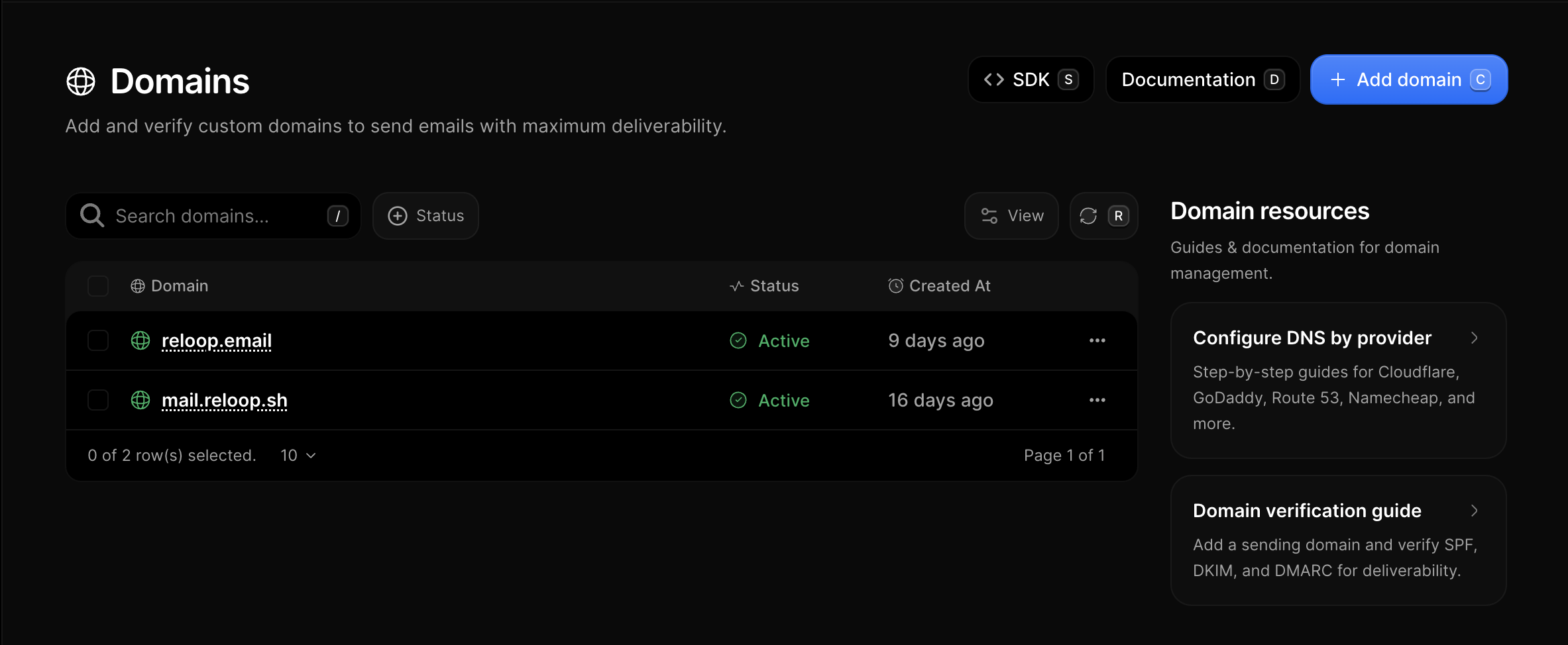
The [Domains Dashboard](https://reloop.sh/dashboard/domain) lists every domain in your organization with status, search, and filters.
## Add a domain
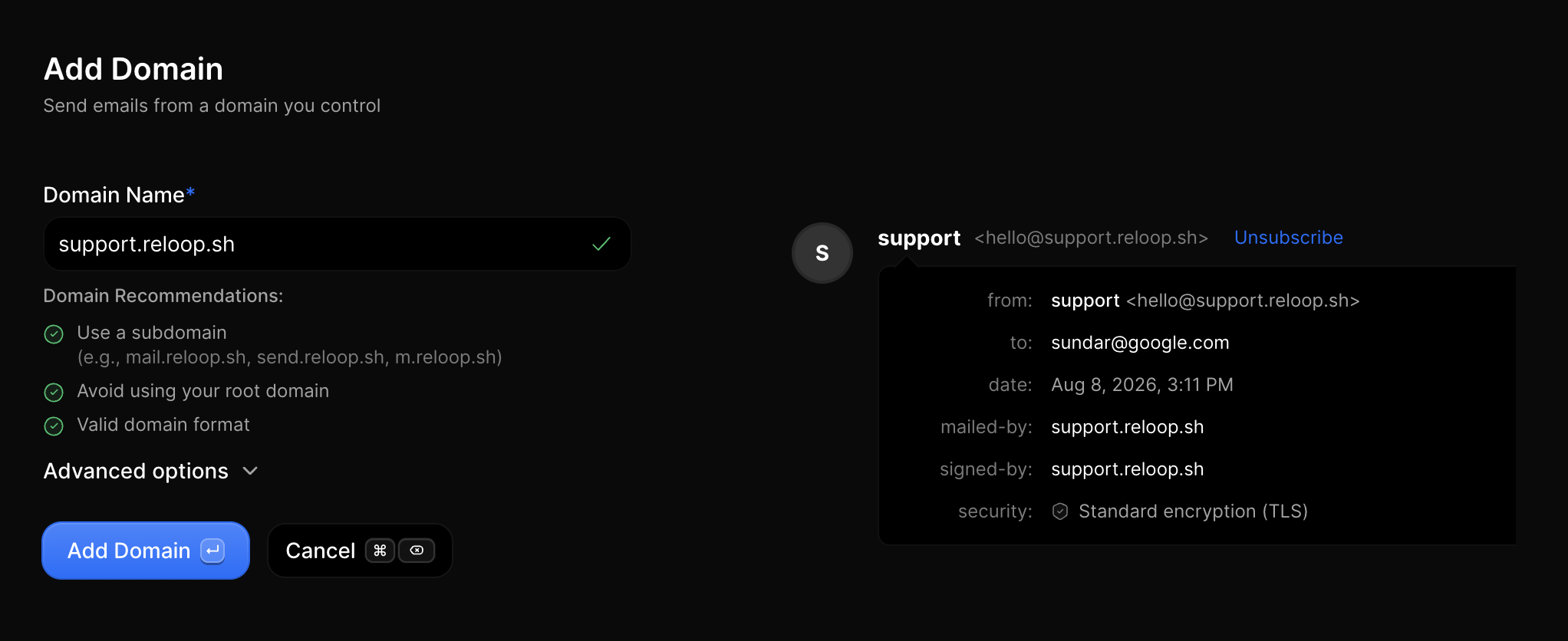
1. Go to [Domains](https://reloop.sh/dashboard/domain)
2. Click **Add domain** (or press `C`)
3. Enter the hostname (e.g. `acme.com` or `mail.acme.com`)
4. Optionally open **Advanced options** to set click/open tracking defaults
5. Click **Add Domain**
Reloop creates the domain in `pending` status and opens the DNS setup page with the records you need to publish.
Prefer a guided path for beginners? See the full [Connect a domain](/docs/guides/connect-domain) guide — DNS basics, provider tutorials, and troubleshooting.
## Configure DNS
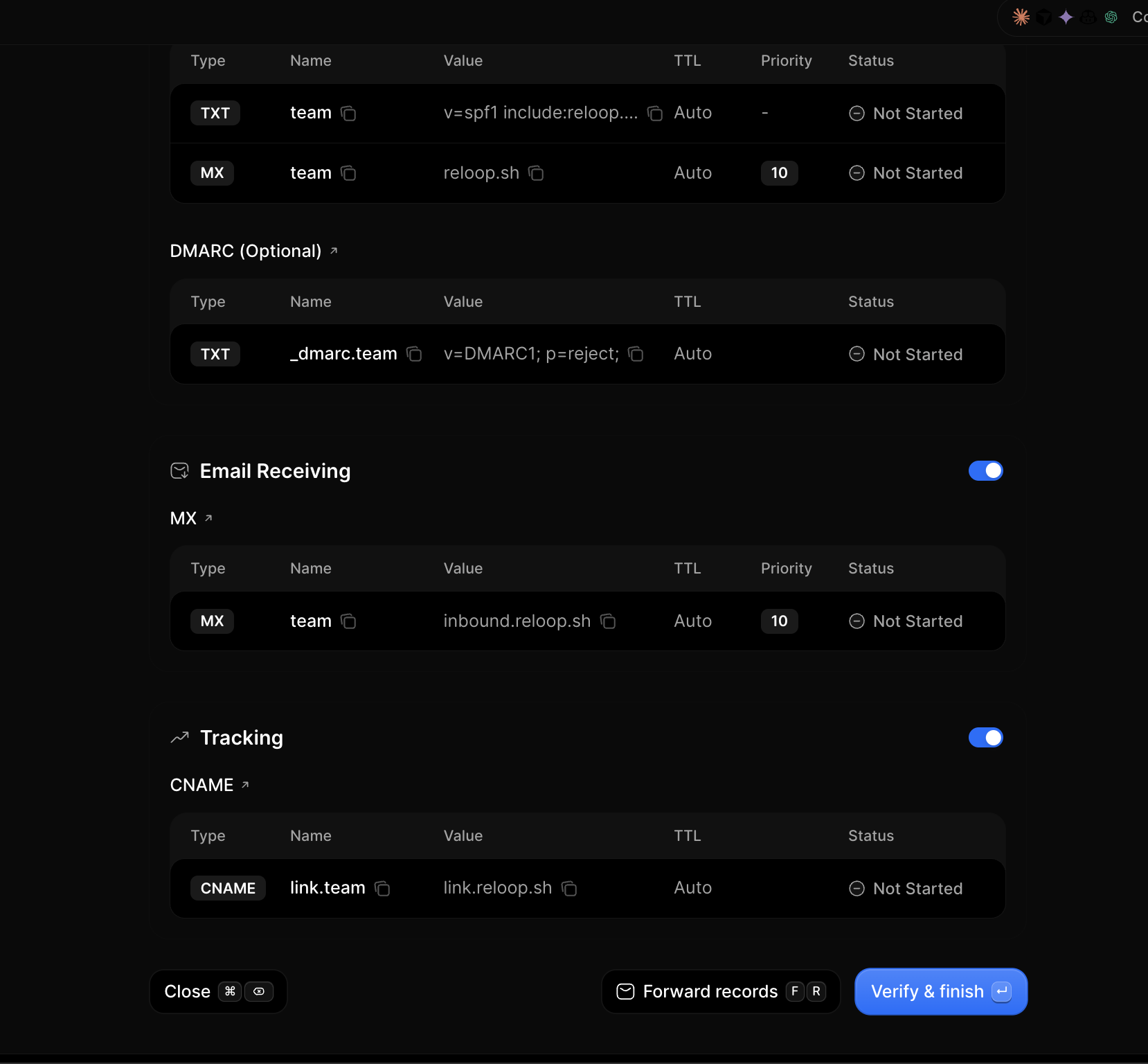
After you add a domain, Reloop shows the required DNS records (SPF, DKIM, DMARC, and MX/tracking when enabled).
**Auto-populate** (when available):
1. On the setup or domain page, click **Auto populate**
2. Approve Reloop’s Domain Connect template at your DNS host
3. Return to Reloop and [verify](#verify-a-domain)
**Manual setup:**
1. Copy each record from the Reloop DNS table
2. Add them at the host that manages your [nameservers](/docs/guides/connect-domain/find-dns-provider)
3. Merge SPF if you already have an SPF TXT — do not create a second SPF record
Deep dives: [Auto-populate](/docs/guides/connect-domain/auto-populate) · [Manual setup](/docs/guides/connect-domain/manual-setup) · [DNS records explained](/docs/guides/connect-domain/dns-records-explained) · [Provider guides](/docs/guides/connect-domain/providers)
## Verify a domain
1. Open the domain from [Domains](https://reloop.sh/dashboard/domain) (or stay on the post-add setup page)
2. Click **Verify** (or use the row/header menu → **Re-verify DNS**)
3. Wait for status to move through `pending` → `verifying` → `active`
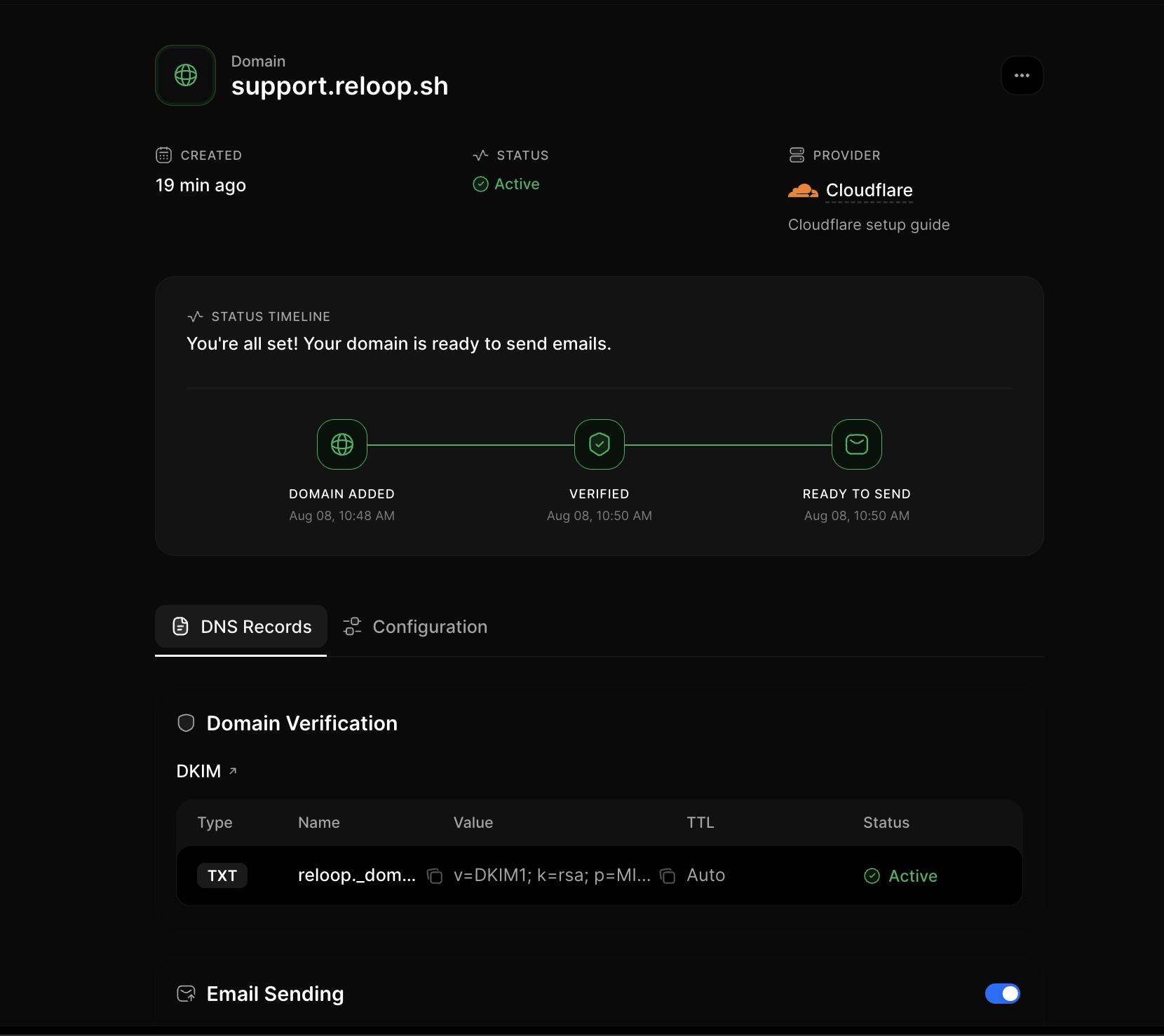
Status meanings and propagation tips: [Domain statuses](/docs/guides/connect-domain/verification/statuses) and [Propagation](/docs/guides/connect-domain/verification/propagation). Stuck? [Domain not verifying](/docs/guides/connect-domain/troubleshoot/not-verifying).
## Configure sending, receiving, and tracking
On the domain detail page you can toggle capabilities without deleting the domain:
1. Open [Domains](https://reloop.sh/dashboard/domain) and click a domain
2. On the **DNS** tab, toggle **Email Sending**, **Email Receiving**, or **Tracking** as needed
3. Open the **Configuration** tab for click tracking, open tracking, and TLS (`opportunistic` or `enforced`)
Receiving uses Reloop MX and can conflict with Google Workspace, Microsoft 365, or other inbox hosts. See [Sending vs receiving](/docs/guides/connect-domain/sending-vs-receiving) and [Avoid MX conflicts](/docs/guides/avoid-mx-conflicts).
## Forward DNS records
Share the Reloop DNS table with a teammate who manages DNS:
1. Open the domain detail or setup page
2. Click **Forward Records** (or use the row/header menu)
3. Enter the recipient email and send
## Delete a domain
Deleting permanently removes the domain from Reloop. You can no longer send with that hostname until you add and verify it again. Optionally remove Reloop DNS rows at your host afterward — see [Remove a domain](/docs/guides/connect-domain/after/remove-domain).
1. Open [Domains](https://reloop.sh/dashboard/domain)
2. Click the row menu (**···**) → **Delete Domain** (or open the domain and use the header menu)
3. Type the confirmation text and confirm permanent removal
You can also select multiple domains on the list and delete them in bulk.
## View all domains
Fetch a paginated list of domains in your organization.
## Add a domain
Create a domain and receive the DNS records Reloop expects you to publish.
Creating a domain does not verify it. Publish DNS (Auto-populate or manual), then call verify.
## Verify a domain
## Update domain configuration
Toggle sending, receiving, click/open tracking, or TLS.
## Delete a domain
## FAQ
Verification proves you control DNS for that hostname and publishes SPF, DKIM, and related records so mailbox providers can authenticate mail from Reloop. Unverified domains cannot send reliably.
**Auto-populate** uses [Domain Connect](/docs/guides/connect-domain/auto-populate) so your DNS host applies Reloop’s records after you approve a template. **Manual setup** means copying each TXT, MX, and CNAME into your DNS panel yourself.
Yes. Reloop supports root domains (e.g. `acme.com`) and subdomains (e.g. `mail.acme.com`). Subdomains are often easier when the root already has other email or DNS services. See [What is a domain?](/docs/guides/connect-domain/what-is-a-domain) and [Subdomain vs root](/docs/guides/subdomain-vs-root).
Toggles pause that capability without deleting the domain. Disabling **sending** blocks outbound From addresses on that domain; disabling **receiving** turns off Reloop inbound MX for that host. Re-enable either anytime from the domain detail page or the Update Domain API.
Often minutes after records publish, but propagation can take up to 48 hours depending on TTL and your DNS host. Click **Verify** / **Re-verify DNS** after changes. Details: [Propagation](/docs/guides/connect-domain/verification/propagation).
Confirm you edited DNS at the **nameserver** host, merge SPF instead of adding a second SPF TXT, check DKIM/DMARC hostnames for typos, then follow [Domain not verifying](/docs/guides/connect-domain/troubleshoot/not-verifying).
Yes — `domain.create`, `domain.updated`, and `domain.deleted`. See [Domain webhooks](/docs/webhooks/domains/created) and [event types](/docs/webhooks/event-types).
## Related
Full DNS setup guide for beginners and experts.
Send after your domain is active.
Authenticate REST and SMTP with API keys.
## API reference
Add a domain and get DNS records.
Paginated list of organization domains.
Get a domain by ID.
Toggle sending, receiving, tracking, or TLS.
Check public DNS against Reloop records.
Email DNS records to a teammate.
Permanently remove a domain.