API Keys
Learn how to create, use, edit, rotate, disable, filter, and delete Reloop API keys from the dashboard or API.
View all API Keys
The API Keys Dashboard shows you all the API Keys you have created along with their details, including the last time you used an API Key.
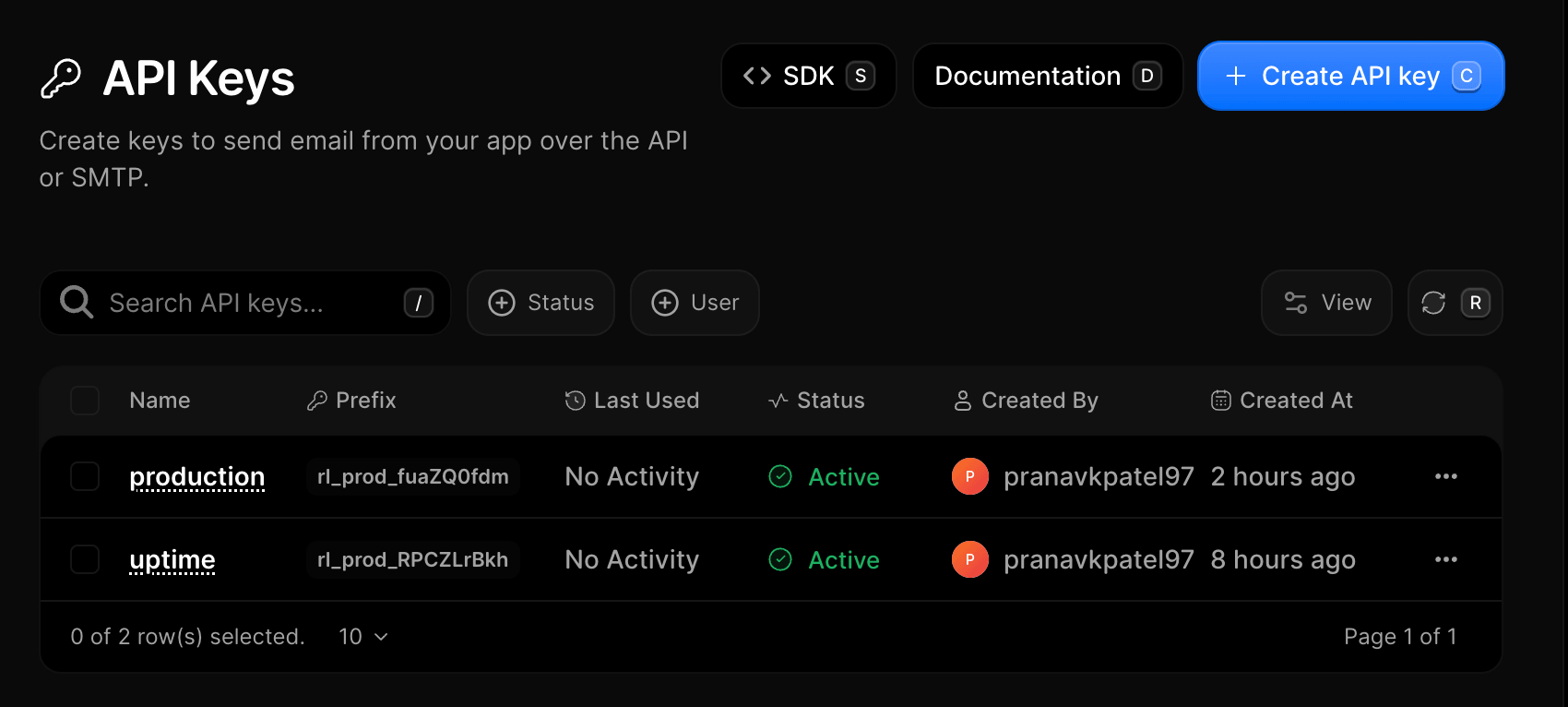
Create an API key
- Go to API Keys
- Click Create API key (or press
C) - Enter a descriptive name (e.g.,
Production ServerorStaging Worker) - Click Create API Key
- Copy the secret key, then click Cancel
Edit an API key
Currently, only the name of an API key can be edited. The API key secret itself cannot be changed. If you need a new secret, rotate the key instead.
- Go to API Keys
- Click the row menu (···) next to the key you want to rename
- Select Edit Api Key
- Update the key name and click Save changes (or press
Enter)
Rotate an API key
Rotate a key when you suspect it may have been exposed, when a team member with access leaves, or as part of regular security hygiene. Rotating issues a new secret and immediately revokes the old one. All previous request logs and usage history stay intact.
- Open API Keys
- Click the row menu (···) → Rotate Key
- Enter the key name to confirm rotation
- Click Rotate Key (or press
Enter)
Disable or enable an API key
Disable a key to temporarily block access without deleting it. You can re-enable it at any time. Common reasons:
- Security breach — key was exposed in a public repo or logs.
- System maintenance — block requests during upgrades to prevent data corruption.
- Testing transitions — verify your system works with a new key before removing the old one.
- Cost control — stop billable consumption from a runaway app or loop.
- Suspicious activity — pause access while you investigate unusual request patterns.
- Open API Keys
- Click the row menu (···) → Disable (or Enable if already paused)
- The key status updates instantly to Disabled
Delete an API key
If an API Key hasn't been used in the last 30 days, consider deleting it to keep your account secure.
- Open API Keys
- Click the row menu (···) → Delete API Key
- Enter the key name to confirm permanent removal
- Click Delete API Key (or press
Enter)
FAQ
Related
API reference
Was this page helpful?
- Need help? Contact Support.
- Chat with Reloop developers on Discord.
- Check out our changelog.
- Questions? Contact Sales.
- LLM? Read llms.txt.