Add a domain
End-to-end flow to add any domain to Reloop, choose auto or manual DNS, and reach Active status.
This is the main path from “I have a domain” to “I can send as @mydomain.com.”
Before you start
- You can log in to the place that manages nameservers for the domain (find your DNS provider).
- Decide root vs subdomain — Reloop supports either, or both.
- Decide if you need receiving or only sending.
Steps
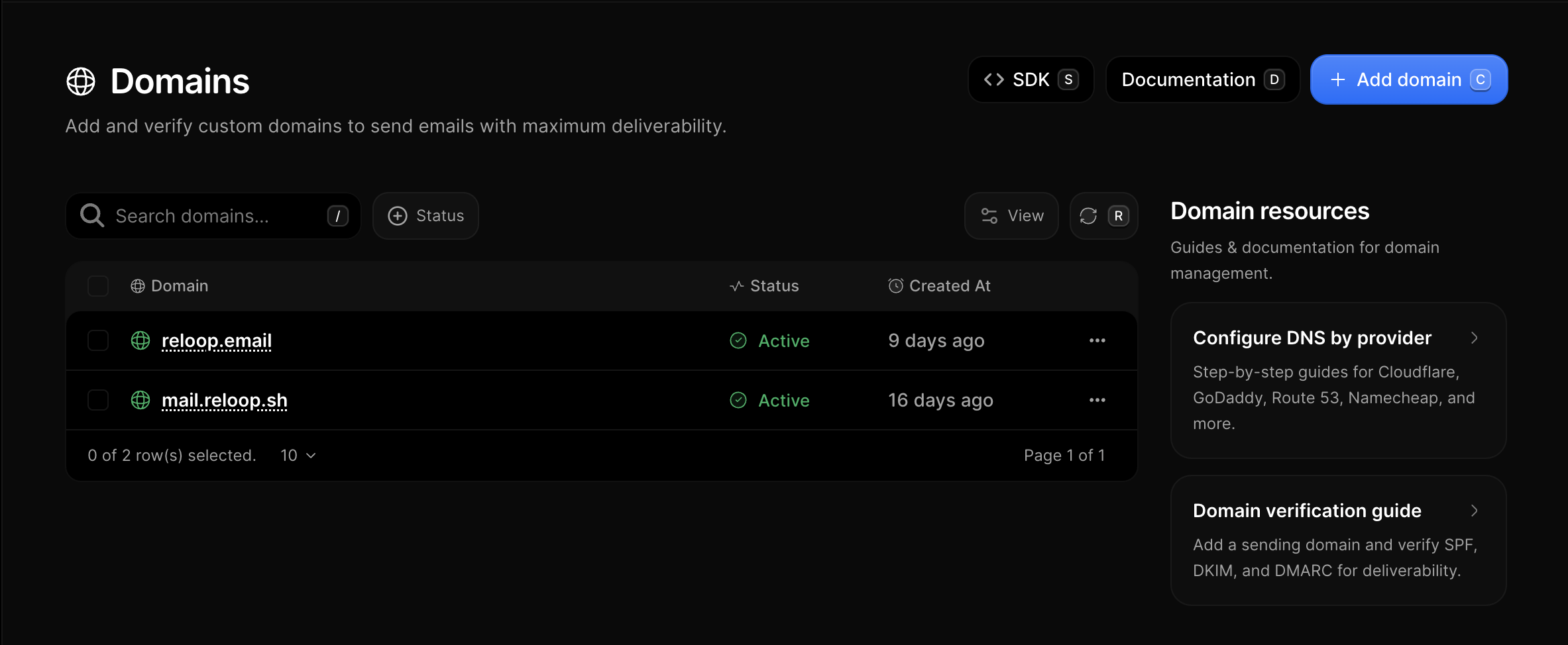
Open Domains
Go to Domains in the Reloop dashboard (or finish the onboarding domain step). Click Add domain.
Add the domain
Enter the hostname you want to send from, for example:
acme.com(root)mail.acme.comornotifications.acme.com(subdomain)
Confirm organization and create the domain. Reloop generates DNS records and DKIM keys.
See how Reloop detected DNS
On the domain page, Reloop shows a provider when nameservers are recognized.
- Auto-populate available → continue with Auto-populate
- Provider known, manual only → Manual setup + that host’s guide
- Unknown → Unknown provider
Publish DNS records
Either complete the Domain Connect consent flow, or copy every required record into your DNS panel. Do not skip DKIM or SPF.
Verify
Click Verify (or wait for automatic checks). Status moves through pending → verifying → active when public DNS matches.
Send a test
Use Test your domain to confirm SPF/DKIM/DMARC in a real inbox.
Domain already in use
If another Reloop organization already verified the domain, see Domain already registered.
Was this page helpful?
- Need help? Contact Support.
- Chat with Reloop developers on Discord.
- Check out our changelog.
- Questions? Contact Sales.
- LLM? Read llms.txt.