Contacts
Learn how to add, search, edit, unsubscribe, and delete Reloop contacts from the dashboard or API.
View all contacts
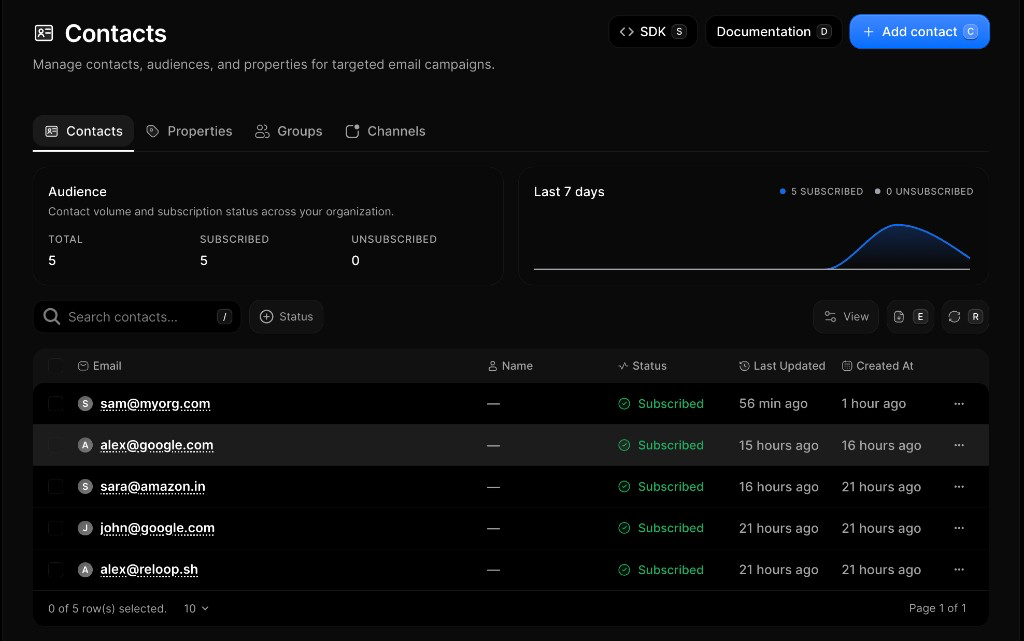
The Contacts Dashboard shows you all the contacts in your organization along with their status, audience totals, and recent activity.
Add a contact
- Go to Contacts
- Click Add contact (or press
C) - Choose Import CSV file, Copy paste, or Sync via SDK
- Finish that flow — map CSV columns, paste emails, or follow the SDK snippets
- Confirm to add the contacts
Email is unique per organization. If the address already exists, Reloop returns an error — update that contact instead of creating another one.
Search and filter contacts
- Open Contacts
- Use Search contacts… (or press
/) to find by email - Optionally filter by Status (Subscribed, Unsubscribed, or Blocked)
- Click a row to open detail — or use Export CSV (
E) for an offline copy
Edit a contact
You can update a contact’s name or properties. Subscription status is changed separately with Subscribe or unsubscribe.
- Go to Contacts
- Click the row menu (···) next to the contact you want to edit
- Select Edit
- Update the fields and click Update (or press
Enter)
Subscribe or unsubscribe a contact
Unsubscribing opts the contact out of your list without deleting them. Status can be subscribed, unsubscribed, or blocked (often from deliverability).
- Open Contacts
- Click the row menu (···) → Subscribe or Unsubscribe
- The contact status updates on the row
Delete a contact
Deleting permanently removes the contact record. Recreate the contact if you need them again.
- Open Contacts
- Click the row menu (···) → Delete
- Confirm permanent removal
FAQ
Related
API reference
Was this page helpful?
- Need help? Contact Support.
- Chat with Reloop developers on Discord.
- Check out our changelog.
- Questions? Contact Sales.
- LLM? Read llms.txt.