Contact Groups
Learn how to create, rename, and delete Reloop contact groups, and add or remove members from the dashboard or API.
View all contact groups
The Groups Dashboard shows every group in your organization. Open a group to see its members, rename it, or add and remove contacts.
Groups are lists you send to. One contact can sit in many groups; the person stays a single record. Membership does not change subscription status — that stays on the contact.
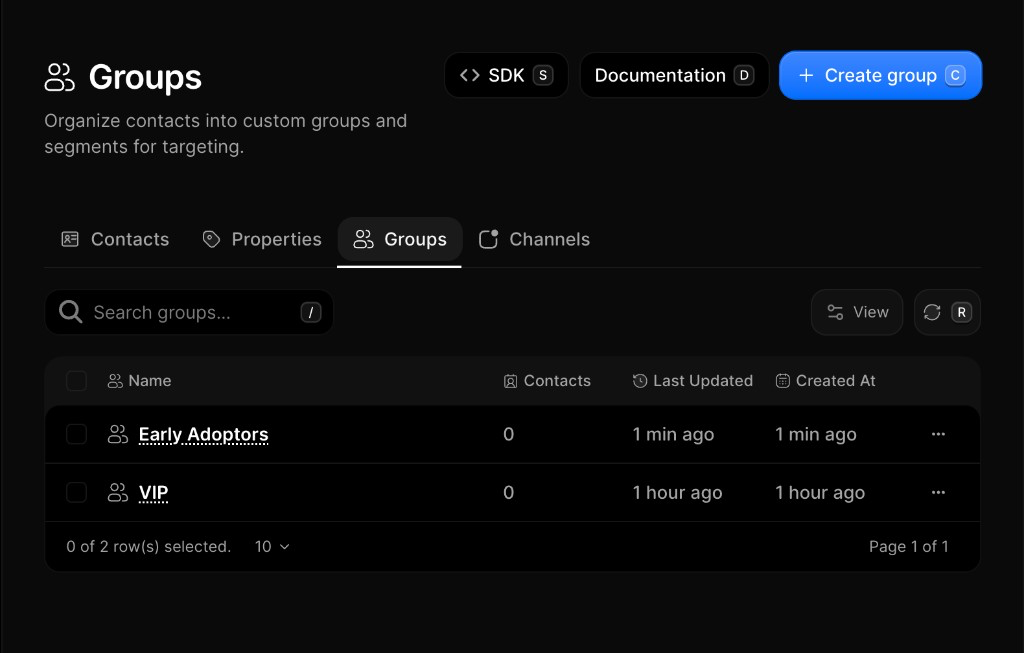
Create a group
- Go to Contacts → Groups
- Click Create Group
- Enter a descriptive name (e.g.
VIP CustomersorFree Trial) - Click Create Group (or press
Enter)
Rename a group
Currently, only the name of a group can be edited. Renaming does not change members or how the group is targeted.
- Go to Contacts → Groups
- Click a group to open its detail page
- Edit the name in the header
- Click Save (or press
Enter)
Add contacts to a group
Use groups to target campaigns without changing who someone is. For example, put trial users in Free Trial and paying customers in VIP, then send an upgrade campaign only to Free Trial.
- Open a group from Contacts → Groups
- Click Add Contacts to Group
- Search and select contacts (or Select All)
- Click Add Contacts
Remove contacts from a group
Removing a member leaves the contact in your organization — they only leave that list. Their profile, status, properties, and other group memberships are unchanged.
- Open the group from Contacts → Groups
- Click the member row menu (···) → Remove from Group
- Confirm removal
Delete a group
Deleting soft-deletes the group. Contacts are not deleted — they stay in your organization and are no longer targeted via that group.
- Open Contacts → Groups (or open the group detail)
- Click the row menu (···) → Delete (or delete from detail)
- Confirm permanent removal
FAQ
Related
API reference
Was this page helpful?
- Need help? Contact Support.
- Chat with Reloop developers on Discord.
- Check out our changelog.
- Questions? Contact Sales.
- LLM? Read llms.txt.