Contact Channels
Learn how to create, edit, and delete Reloop subscription channels, enroll contacts, and view subscribers from the dashboard or API.
View all channels
The Channels Dashboard shows every subscription channel in your organization, including subscriber count, visibility, and default enrollment.
Channels are topics contacts can opt in or out of — for example Product Updates or Newsletter — instead of a single global unsubscribe. Visibility and default subscription stay on the channel; enrollments live on each contact.
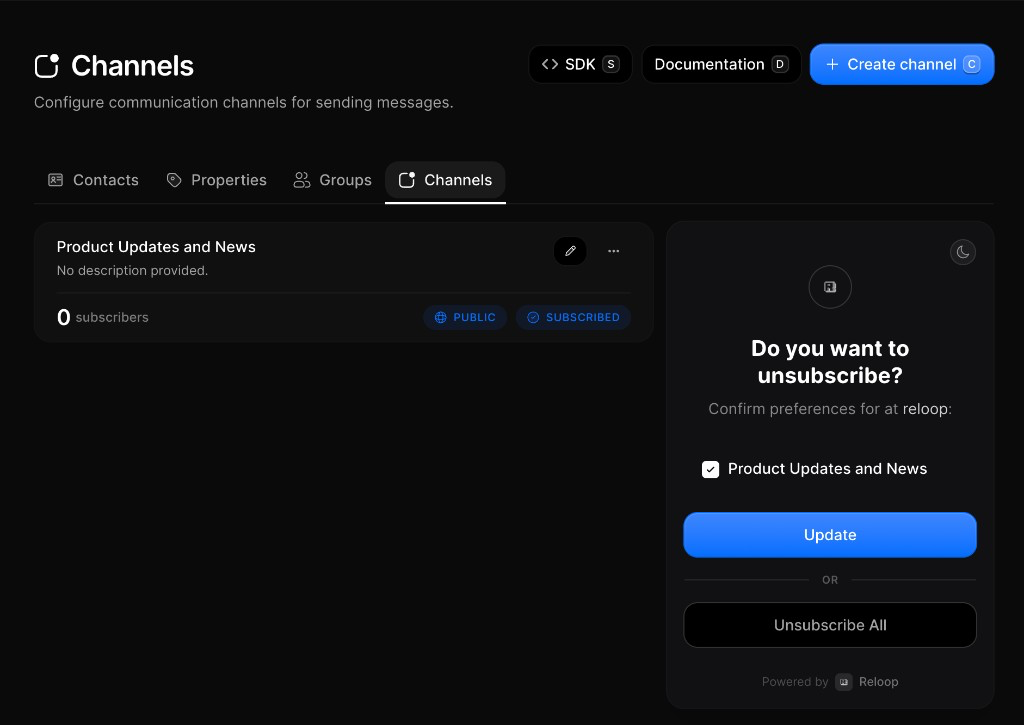
Create a channel
- Go to Contacts → Channels
- Click Create channel (or press
C) - Enter a descriptive name (e.g.
Product UpdatesorNewsletter) - Optionally add a description, set Default Subscription, and choose Public Channel
- Click Create Channel (or press
Enter)
Default Subscription controls whether new contacts are enrolled automatically (opt-in) or must be enrolled manually (opt-out). Public channels appear on the preference center; private channels stay hidden from subscribers.
Edit a channel
You can update a channel’s name, description, default subscription, and public/private visibility. Editing does not remove existing enrollments.
- Go to Contacts → Channels
- Click the edit icon (or row menu ··· → Edit Channel)
- Update the fields you need
- Click Update Channel (or press
Enter)
View channel subscribers
View Subscribers opens Contacts filtered to contacts enrolled in that channel. The subscriber count on the channel card matches this enrolled list — not every contact in your organization.
- Open Contacts → Channels
- Click the row menu (···) → View Subscribers
- Review the filtered contacts list (clear the channel filter chip to see everyone again)
Remove a contact from a channel
Removing a contact from a channel only updates that topic preference. The contact stays in your organization and can remain enrolled in other channels.
- Open Contacts (or open a contact detail)
- Edit the contact and remove the channel (e.g. Product Updates)
- Save the contact
Delete a channel
Deleting removes the channel and its enrollment records. Contact profiles themselves remain in your organization.
- Open Contacts → Channels
- Click the row menu (···) → Delete Channel
- Confirm permanent removal
FAQ
Related
API reference
Was this page helpful?
- Need help? Contact Support.
- Chat with Reloop developers on Discord.
- Check out our changelog.
- Questions? Contact Sales.
- LLM? Read llms.txt.